
Getting started
No client or browser extension. Use a current desktop Chrome / Edge / Firefox / Safari.
Screenshots below show the English UI; switch the editor to Simplified Chinese if you prefer.
Requirements
- Desktop: Chrome 120+, Edge 120+, Firefox 120+, Safari 17+
- OS: Windows 10+, macOS 12+, mainstream Linux
- Tablets: modern browsers work; complex editing is better with a keyboard
- Files:
.pptx/.pptmfrom Office 2016+ recommended; keep a single file under ~100 MB - Network: online for the first load; editing often continues on a slow connection. Saving .pptx and HTML export need sign-in and a network. PDF, PNG zip, and video are made in the browser
Legacy .ppt (97-2003) is not imported directly. Resave as .pptx. Files from WPS / LibreOffice should be re-saved as standard pptx in PowerPoint when possible.
UI language can be switched between English and Simplified Chinese in the editor or console Settings.
1. Open the editor
Drop a .pptx on the website homepage, or go straight to the editor.
Open, edit, and present without an account; drafts stay in this browser by default. Saving .pptx and HTML export need sign-in. PDF, PNG zip, and video do not. Online storage, sharing, live present, and collaboration need sign-in. Sign-up joins the beta. See Account & beta.
Opening from the marketing site prefers a browser-to-editor handoff. If the popup is blocked and you are signed in, a short-lived server slot may be used.
2. Open or create a deck
Use the Open menu at the top left: Open .pptx, Open from link, New, or restore from browser cache.
Open from link reads an https address in this browser and opens it as a local draft. A public or time-limited link on S3, OSS, or any other host works the same way. Paste the address in the dialog, or open the editor with ?pptx= set to that address, encoded. The file has to be a .pptx or .pptm, at most 100 MB. When the browser cannot read the address, the editor says it couldn't read the link. An address that is not https is turned away before any request.
You can also drop a .pptx, picture, video, or audio file onto the stage. While you drag, the page dims and the stage is marked; a progress bar shows the read. Online storage and share need a signed-in account.
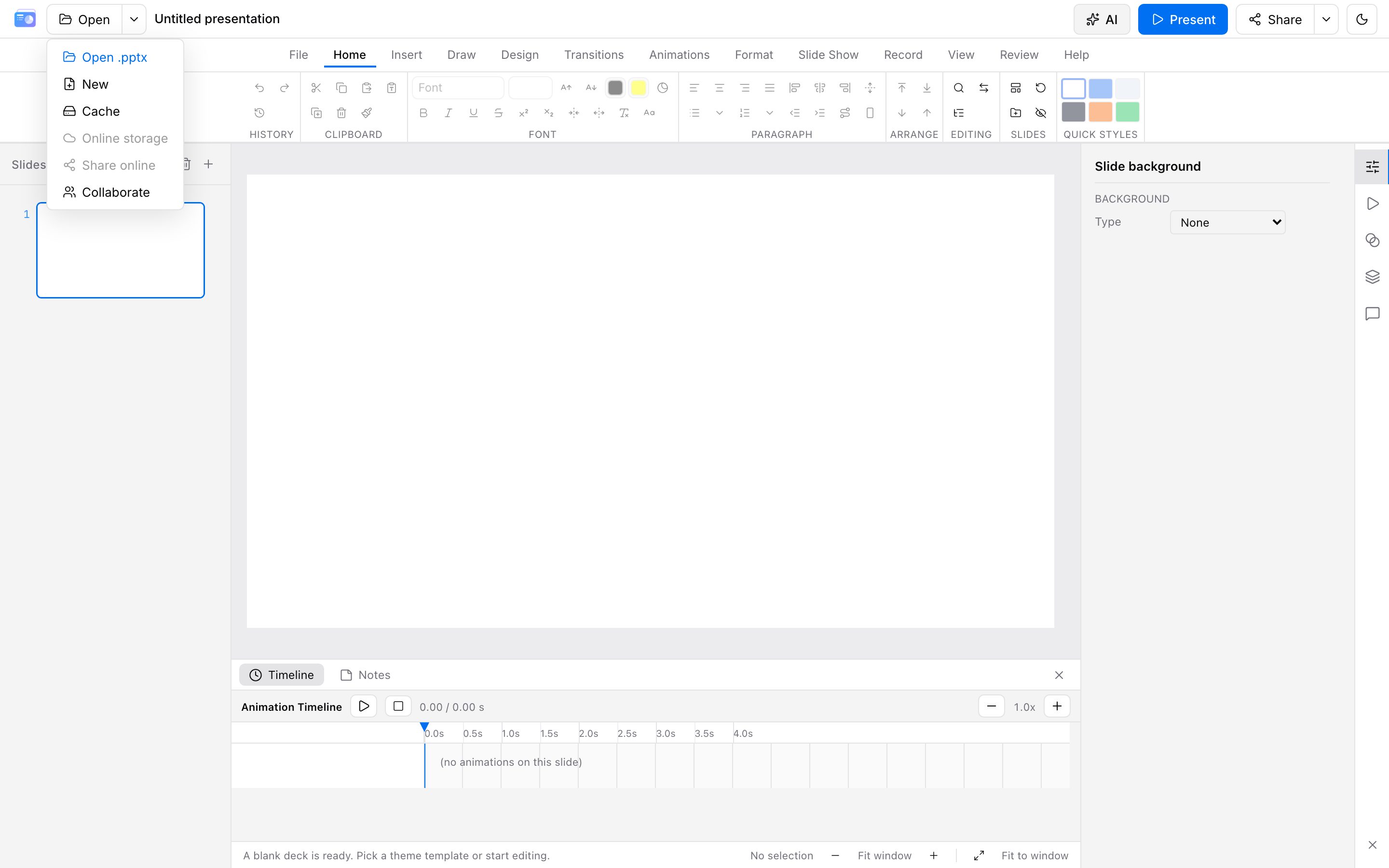
The first visit opens a template picker. Choose a built-in theme, upload a pptx as a template, or describe a theme for AI (API key required).
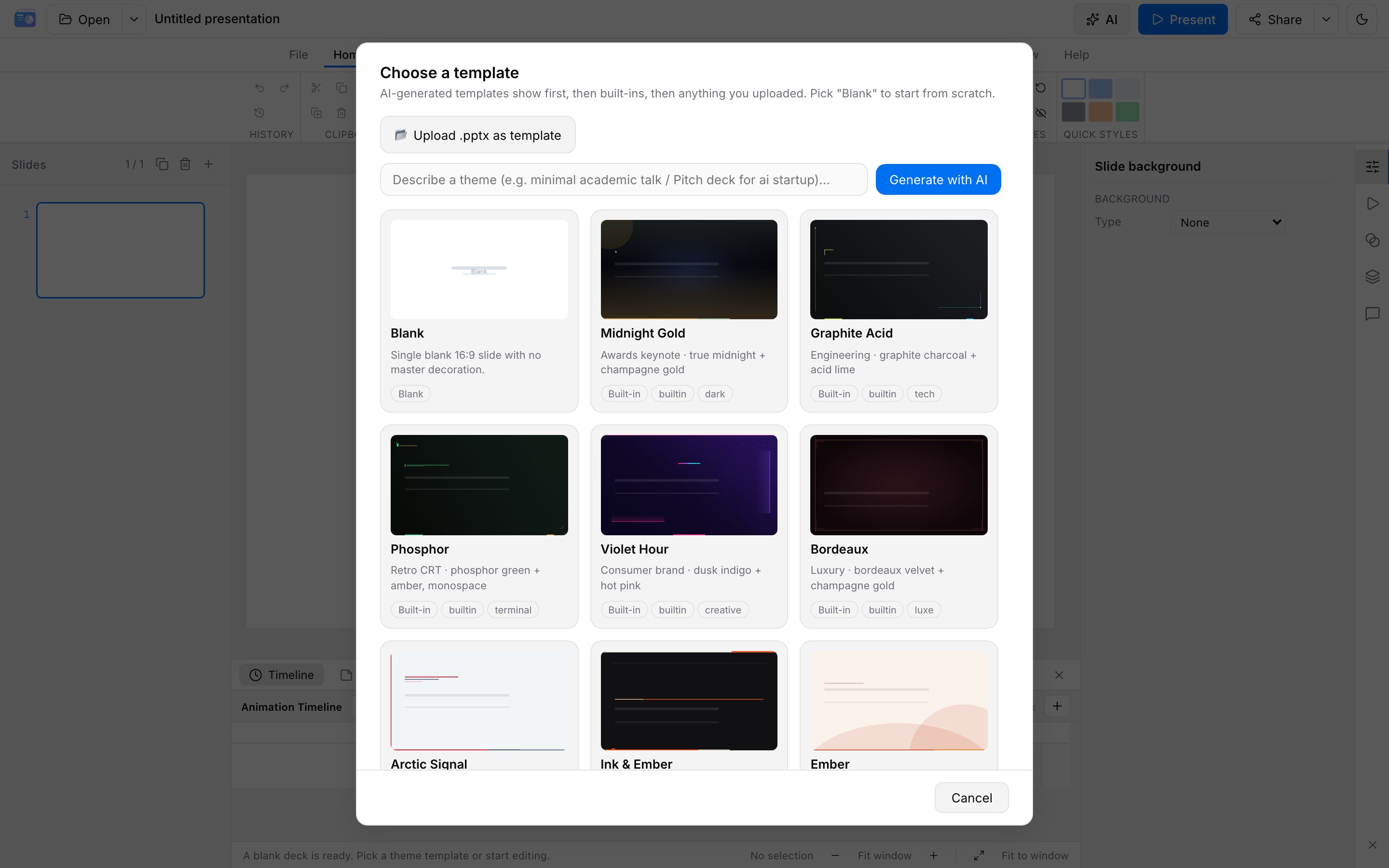
3. Edit and export
When parse finishes you can browse, edit, and present. Under 10 slides is usually seconds; 100+ slides may take tens of seconds. Avoid opening the same file twice.
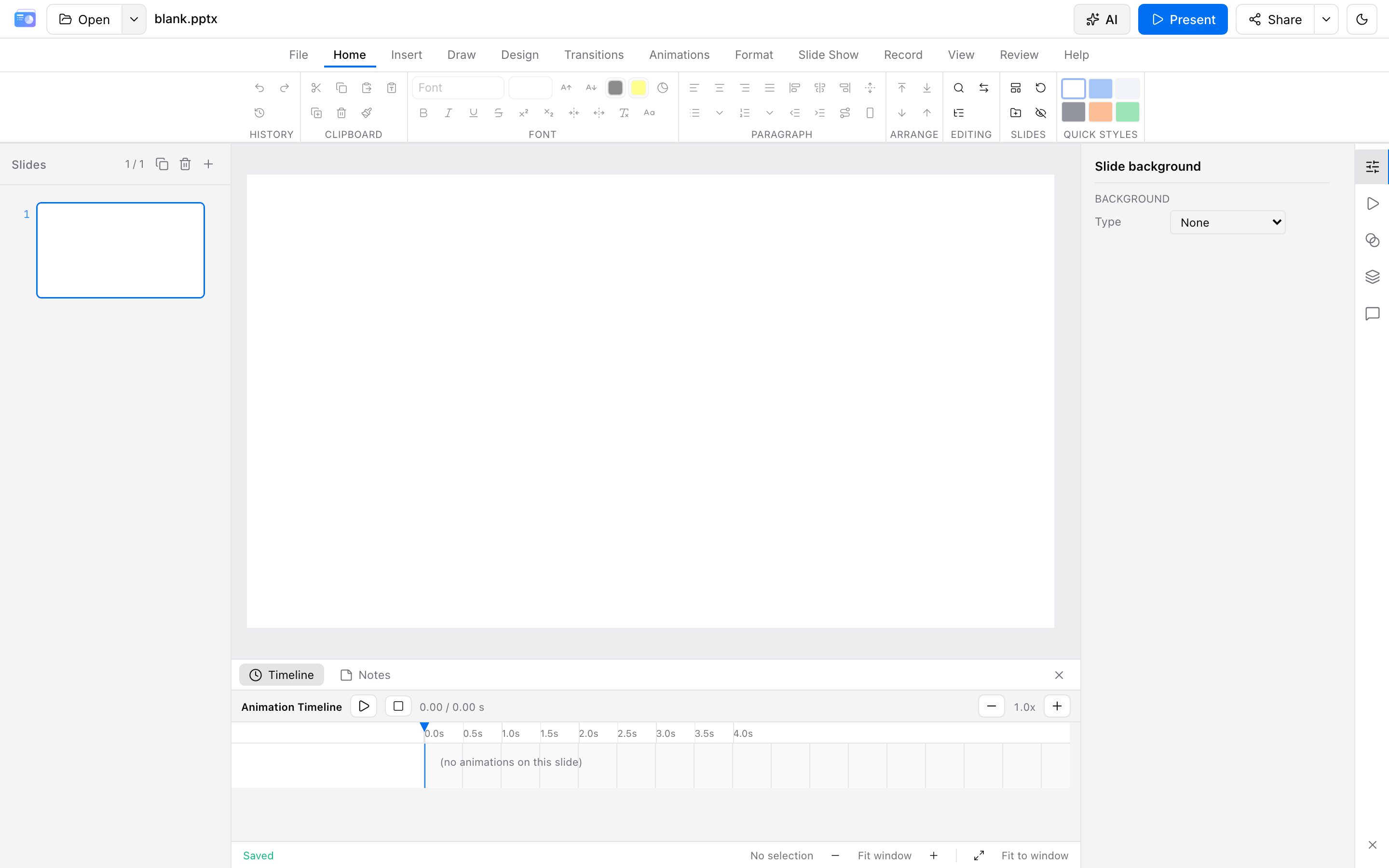
Drafts auto-save locally. Share at the top right exports the deck: PPTX and HTML are generated on our servers and need sign-in (Ctrl/Cmd+S saves .pptx the same way). PDF, PNG zip, and video are made in this browser. Signed-in accounts show the PPTX/HTML quota. See Export.
Help → Show Training on the command strip opens this documentation.
Next
- Learn the editor
- Preview animation & slideshow
- Try the AI assistant
- Read export quotas and cloud storage
- Register / sign in when you need export or cloud sync