
AI assistant
AI uses your model API key (OpenAI, Anthropic, Gemini, DeepSeek, Kimi, Hugging Face, OpenRouter, and similar). Image generation can use OpenAI, OpenRouter, FLUX, Stability, Fal, Seedream, and other compatible endpoints. Keys stay in the browser only—SlimPPT does not upload or store them. Usage is billed by the model vendor.
Open the AI button at the top right. Until a key is set, chat shows a prompt to fill one in Settings.
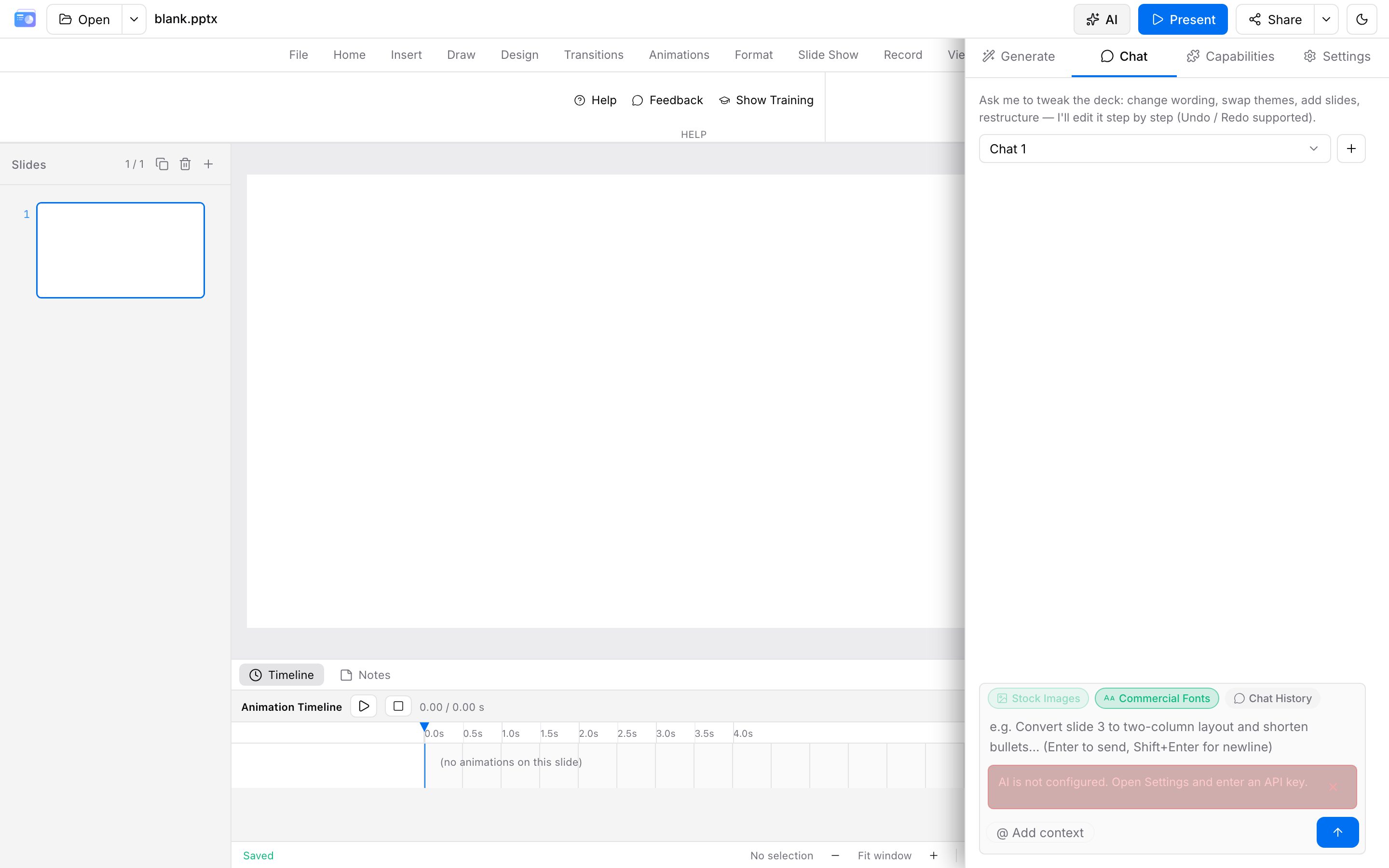
Four tabs:
| Tab | Role |
|---|---|
| Generate | Wizard to build a full deck from a brief |
| Chat | Natural-language edits to copy, layout, color, or animation |
| Capabilities | Toggle MCP (stock / fonts / history) and Skills |
| Settings | Provider, API key, image generation, stock keys |
Bring-your-own-key is available in beta; AI is not plan-gated.
Settings
- Pick a provider (international / China / local custom)
- Paste an API key; optional Base URL and proxy URL (if the browser hits CORS)
- For images: enable an image provider and/or Unsplash / Pexels keys
- Stock libraries are preferred for one-click generate enrichment; without a stock key, image generation is the fallback
Settings live in this browser’s localStorage. Another device or cleared site data means you fill them in again.
Generate from a brief
The wizard:
- Content: topic, audience, scenario, goals, length, language
- Appearance: built-in theme or AI theme; optional style family (editorial, Swiss grid, data journalism, …)
- Options: generate Skills, motion style (minimal / cinematic / editorial / playful), image enrichment
- Outline: edit titles and bullets; optionally confirm a design spec first
- Build: theme → per-slide → compile → images → QA
Optional Use current PPT as layout reference: keep geometry, décor, and pictures; rewrite text only. Good for a new script on an existing template.
The result loads into the editor and can be undone. Review contrast, layers, and motion.
Chat edits
Select a slide or object, then describe the change. Each step is Ctrl/Cmd+Z undoable. You can pin the current slide so the model stays on that page.
Good for titles, backgrounds, motion, chart captions, brand colors. Poor for rebuilding the whole deck in one prompt—use Generate or split the work.
Skills and MCP
- Skills: named rule sets injected into generate / chat prompts. Built-in
ppt_mastercovers narrative arc, style families, and visual standards. You can author or upload Markdown skills in Console → AI Skills; they sync to the editor when cloud storage is on. - MCP: tools the model can call. Built-in stock images (Unsplash / Pexels), fonts (Google Fonts), and chat history; remote MCP servers can be added in Settings. Chat can override defaults per turn.
- Enabling full chat-history access is treated as privacy-sensitive and asks for confirmation.
Tips
- Put a valid key in settings and confirm the vendor account has credit
- Prompts go to the vendor you configured—do not send confidential decks to a model you do not trust
- Always review output: contrast, overlapping layers, fonts, and motion
- After a theme or background change, re-check text contrast
If it does not work
- Confirm the API key in settings
- Check the vendor bill and quota
- Try another network or disable ad blockers; set a proxy URL if CORS blocks direct calls
- Email support@slimppt.com with browser version and the error (never paste the key)