
Animation & slideshow
SlimPPT implements transitions and object animations from OOXML, aiming to match PowerPoint preview in the browser. Third-party plugins, VBA, or exotic effects may differ.
Slide transitions
Use Transitions on the current slide. 70+ effects, including:
- Basics: cut / fade / push / cover / wipe / split / zoom
- 3D: cube / gallery / orbit / pageCurl
- WebGL-accelerated cube and page curl
- Morph (shape match and path interpolation)
Duration, sound, effect options, and Apply to All are available.
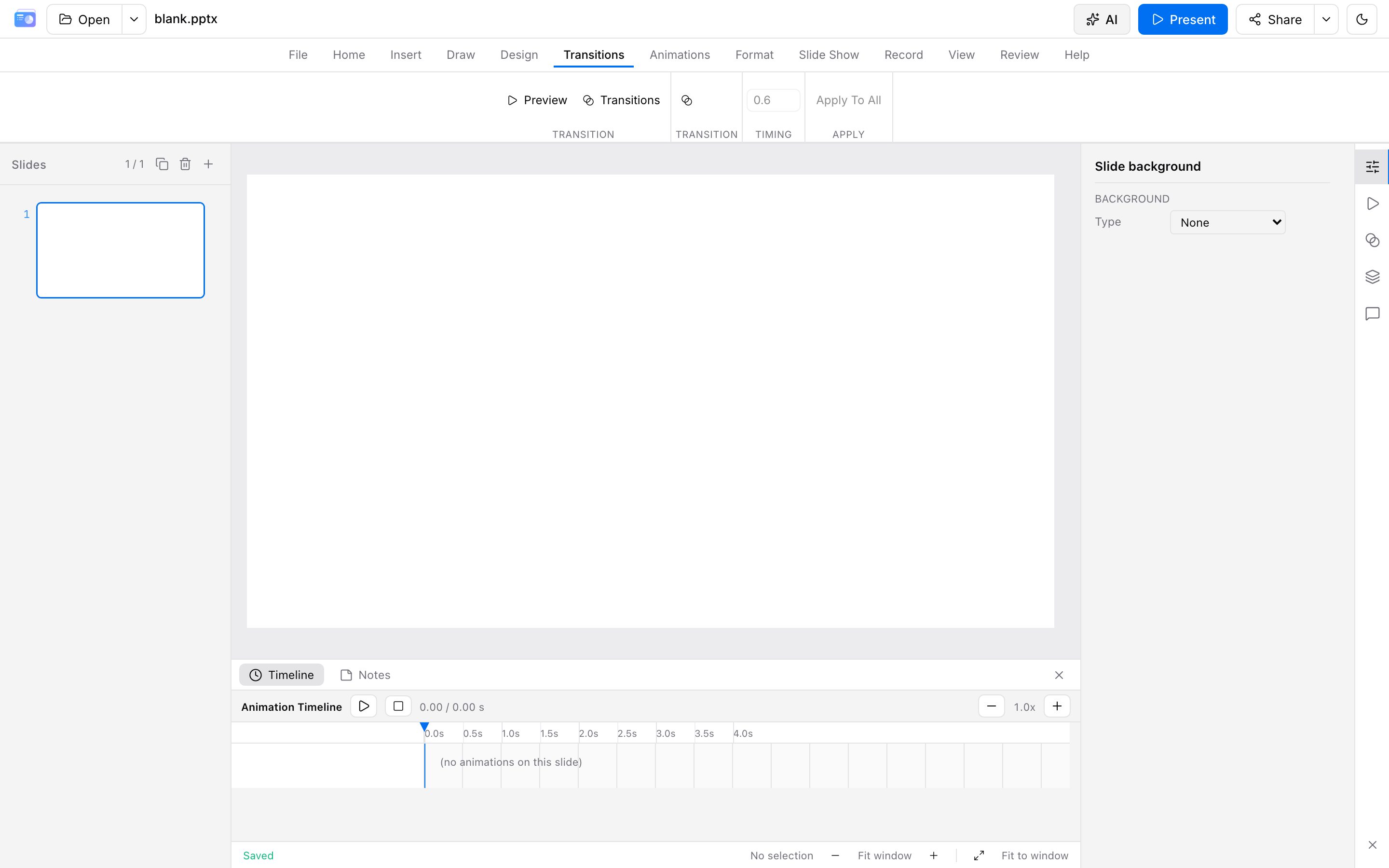
Object animation
Use Animations for entrance, emphasis, exit, or motion paths. Fine-tune order and duration on the timeline. Animation Painter and per-paragraph / per-letter iterate are supported. Avoid stacking too many effects on one object.
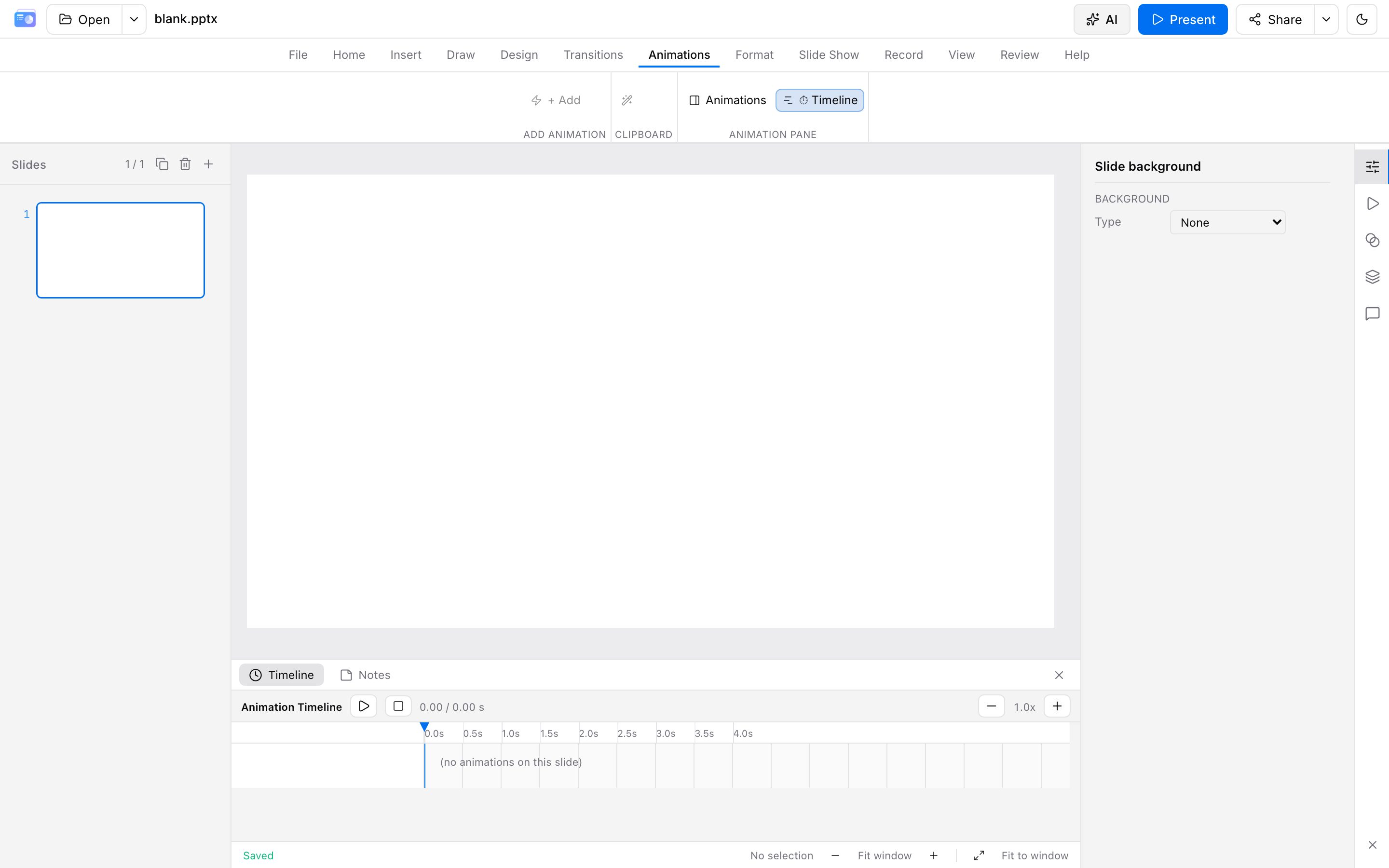
You can also ask the AI assistant to apply motion in bulk.
Slideshow
| Action | Shortcut | Where |
|---|---|---|
| From the beginning | F5 | Blue Play at the top right, or Slide Show |
| From the current slide | Shift + F5 | Slide Show tab |
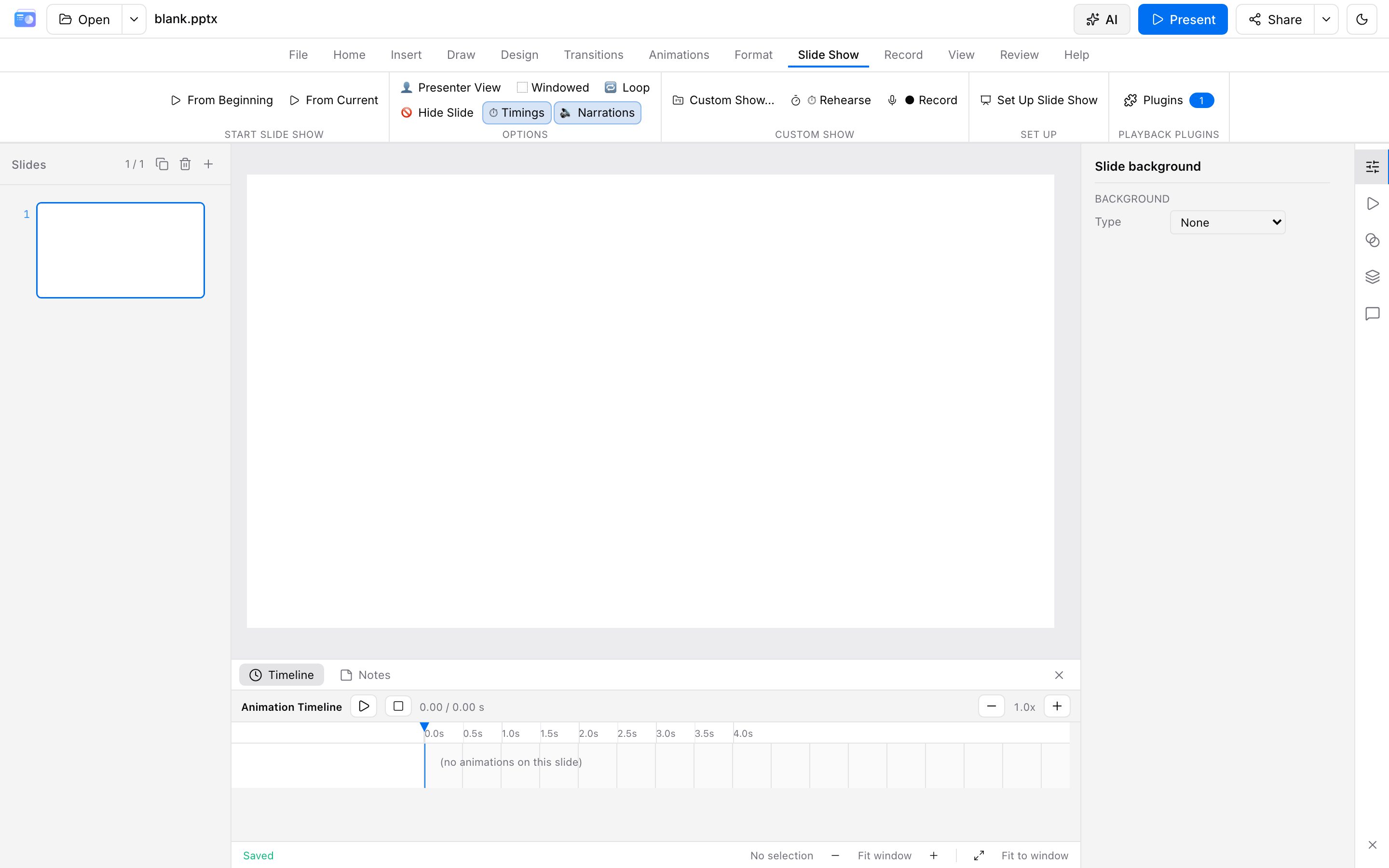
Slideshow includes:
- Full screen and custom shows (a subset of slides)
- Presenter view: current slide, next, animation progress, thumbnails, notes, timer; optional second-screen audience window
- Rehearse timings, narration, media controls
- Playback plugins (laser pointer, whiteboard, screenshot; available in-app. HTML export packaging is under Export)
- Live Present: the audience follows your slides—see Cloud storage & share
Right-click during a show for the menu. Space / → advances; ← goes back; B blacks out; F fullscreen; Esc ends. Full list: Shortcuts. Type a slide number and press Enter to jump.
Record
The Record tab can:
- Record microphone narration from the beginning or current slide (with slide timings)
- Record media: screen, camera, screen + camera (picture-in-picture), or audio only, then insert onto the current slide
- Save as video: download a screen recording as MP4 (falls back to WebM)
Allow microphone / camera / screen sharing when the browser asks. Large files prompt before insert.
Preview before you ship
- Check complex motion paths and 3D transitions slide by slide
- Embedded video / audio depends on browser codecs—finalize critical decks in PowerPoint
- If one slide looks wrong, note the slide number and effect name, then email support with a redacted sample