
Shortcuts
On desktop browsers. “Ctrl” is ⌘ (Command) on Mac. Help → Help in the editor opens the same editing list:
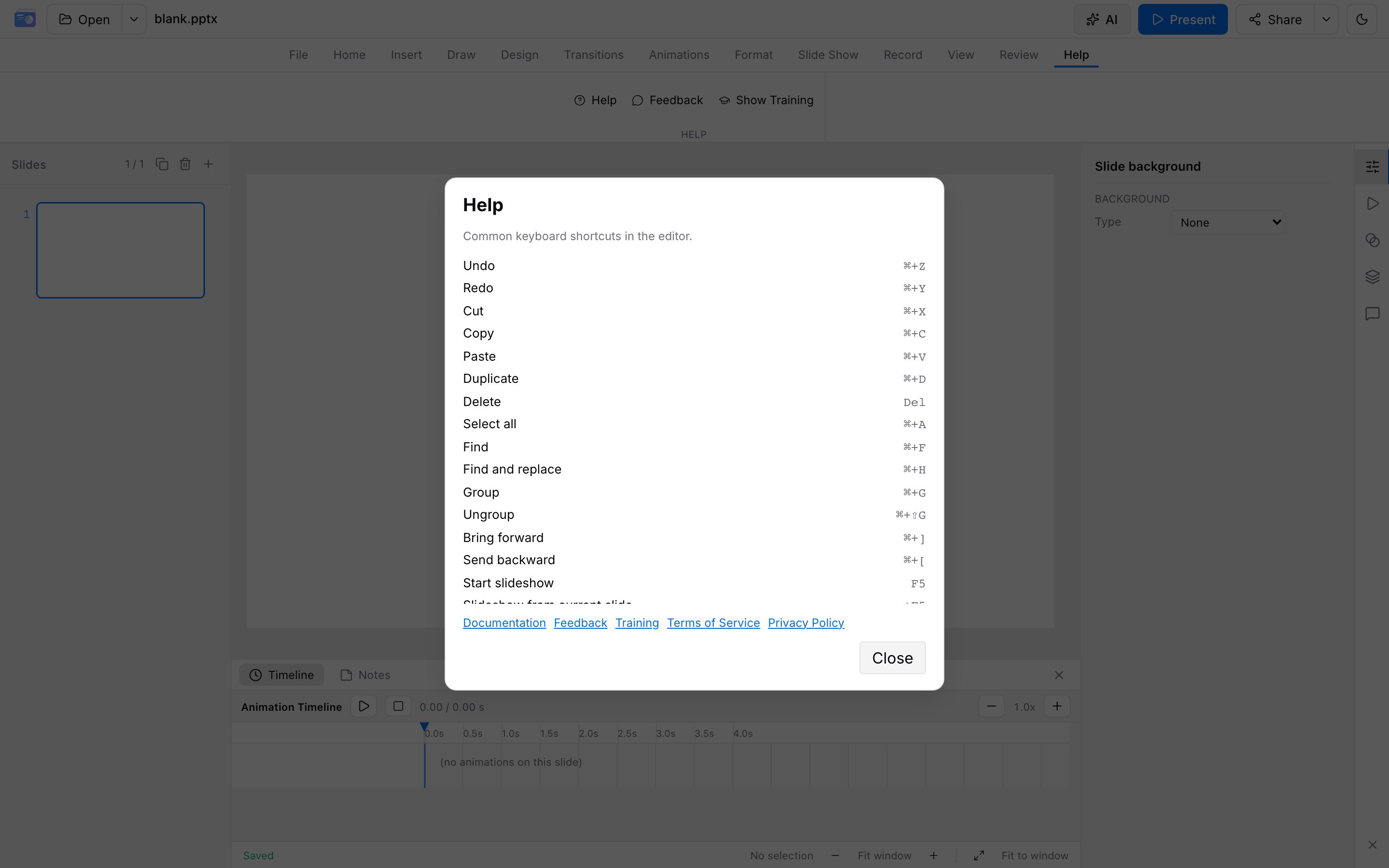
Editing
| Action | Windows / Linux | Mac |
|---|---|---|
| Undo | Ctrl + Z | ⌘ + Z |
| Redo | Ctrl + Y | ⌘ + Y |
| Cut | Ctrl + X | ⌘ + X |
| Copy | Ctrl + C | ⌘ + C |
| Paste | Ctrl + V | ⌘ + V |
| Duplicate | Ctrl + D | ⌘ + D |
| Delete | Delete | Delete |
| Select all | Ctrl + A | ⌘ + A |
| Find | Ctrl + F | ⌘ + F |
| Find and replace | Ctrl + H | ⌘ + H |
| Save as .pptx | Ctrl + S | ⌘ + S |
Redo may also be Ctrl/⌘ + Shift + Z.
Arrange
| Action | Windows / Linux | Mac |
|---|---|---|
| Group | Ctrl + G | ⌘ + G |
| Ungroup | Ctrl + Shift + G | ⌘ + Shift + G |
| Bring forward | Ctrl + ] | ⌘ + ] |
| Send backward | Ctrl + [ | ⌘ + [ |
| Bring to front | Ctrl + Shift + ] | ⌘ + Shift + ] |
| Send to back | Ctrl + Shift + [ | ⌘ + Shift + [ |
| Nudge | Arrow keys | Arrow keys |
| Larger nudge | Shift + arrows | Shift + arrows |
Slideshow (before you start)
| Action | Shortcut |
|---|---|
| From the beginning | F5 |
| From the current slide | Shift + F5 |
During a slideshow
| Action | Shortcut |
|---|---|
| Next (animation or slide) | Space, Enter, →, ↓, PageDown; click the stage |
| Previous | ←, ↑, PageUp, Backspace |
| First / last slide | Home / End |
| Jump to slide N | Digits, then Enter |
| Black / white screen | B / , |
| Thumbnail grid | G |
| Slideshow help | F1 |
| Fullscreen | F |
| Laser / whiteboard / save slide PNG | L / W / S |
| End show | Esc |
The in-editor Help dialog shows modifiers for your OS. See Editor and Animation & slideshow for workflows.