
Editor
The workspace mirrors desktop PowerPoint. Every change goes through an undo stack (Ctrl/Cmd + Z).
Open: https://edit.slimppt.com (no account required)
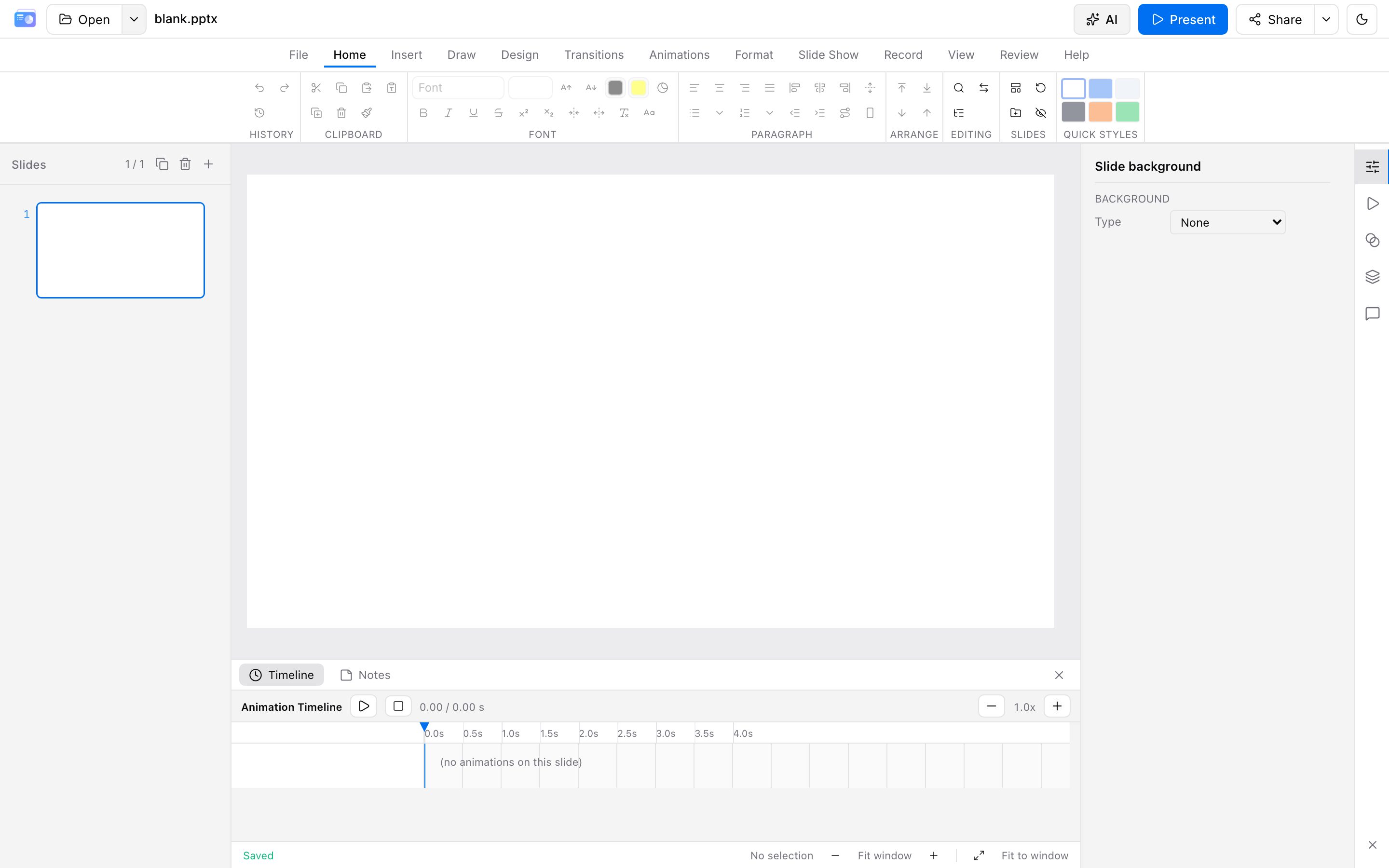
Layout
| Area | Role |
|---|---|
| Top left | Open / New / Cache; the file name shows the current deck |
| Top right | AI, slideshow, share, export |
| Top Ribbon | File, Home, Insert, Draw, Design, Transitions, Animations, Format, Slide Show, Record, View, Review, Help |
| Left | Slide thumbnails. Click to switch; Ctrl/Cmd for multi-select |
| Center | Canvas. Select, move, resize, and edit text |
| Right | Inspector (background, fill, stroke, text, effects) and Selection Pane |
| Bottom | Animation timeline and notes |
Ribbon tabs
| Tab | Typical actions |
|---|---|
| File | New, Open, Recent, Print, Share, Collaborate, Account |
| Home | Clipboard, New Slide, Layout / Reset, Sections, Hide, font and paragraph, Quick Styles, Find & Replace, Selection Pane, Format Painter |
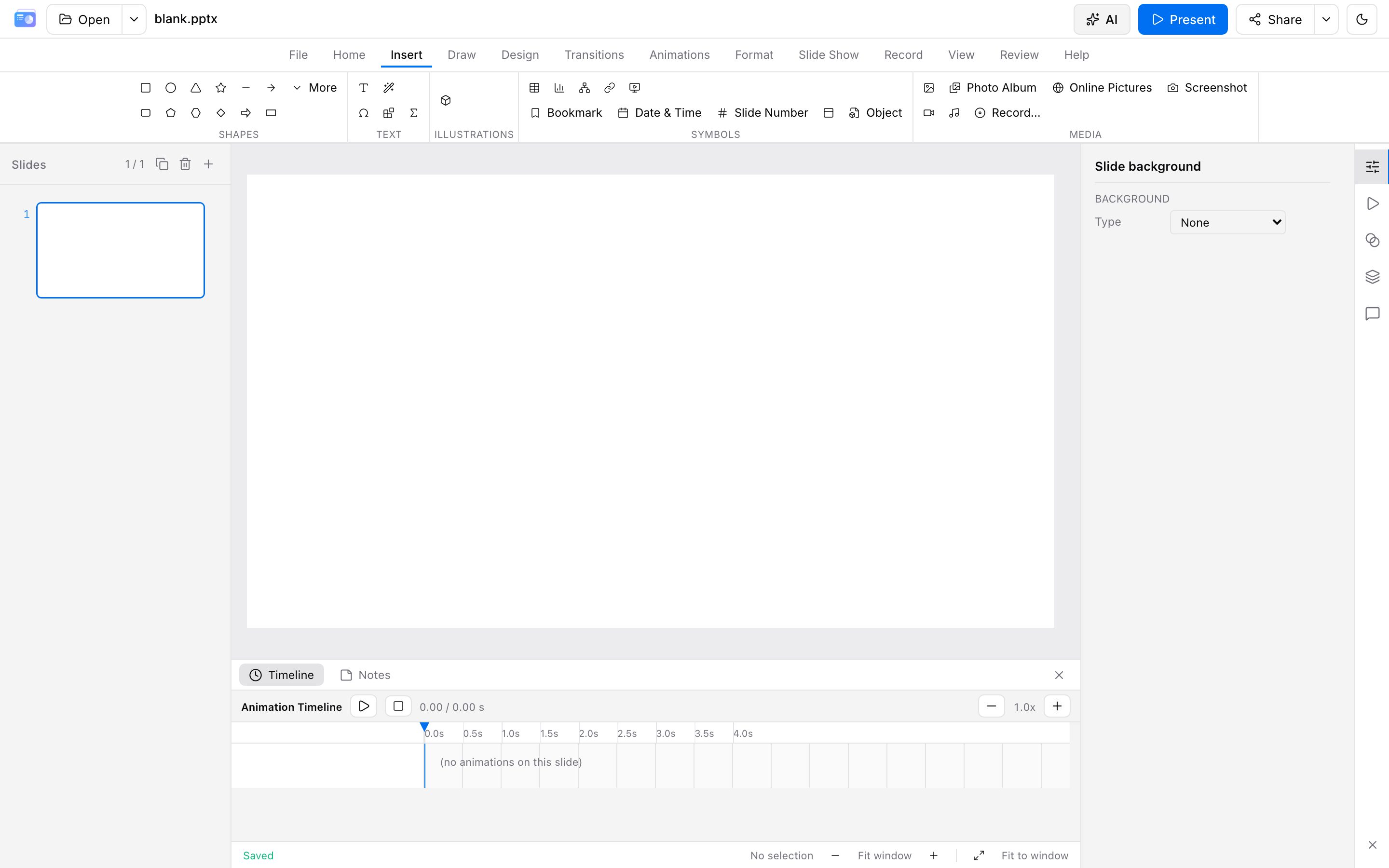
| Insert | Shapes, text, tables, charts, SmartArt, pictures / online pictures / screenshot, photo album, media library, video / audio, icons, WordArt, equations, hyperlinks, web embed, 3D models |
| Draw | Pen / highlighter / eraser; ink to shape / ink to text |
| Design | Themes, color/font variants, slide size, background, Designer (layout audit, optional AI review) |
| Transitions / Animations | See Animation & slideshow |
| Format | Fill, outline, effects, align, group, z-order |
| Slide Show / Record | See Animation & slideshow |
| View | Normal / Sorter / Outline / Reading / Notes Page; slide / notes / handout masters; grayscale / black-and-white |
| Review | Comments, accessibility check, spelling, translate, compare, protect |
| Help | Shortcut list, feedback, this guide |
Text, shapes, and images
- Click to select; drag to move; corner handles to resize. Double-click text boxes to edit.
- Multi-select for batch alignment or distribution. Format Painter: click once to paint once, double-click to lock; Esc cancels.
- Sections: group slides from Home or the thumbnail list.
- Hide slide: skipped in slideshow; the flag is kept in PPTX export.
- Images: replace, crop, opacity; also Insert → Online Pictures or Screenshot.
- Media library: Insert → Library to upload and categorize images / video / audio, then insert onto the slide. With cloud storage unlocked, the library encrypts to the server and can also be managed in the console.
- Photo album: several pictures → grid slides in one pass.
Insert shapes, icons, WordArt, and equations (KaTeX) from Insert. Ink is on Draw.
Tables, charts, and SmartArt
- Tables: add/remove rows and columns in the inspector; borders and fill.
- Charts: series, colors, and chart types (including scatter) in the inspector.
- SmartArt: pick a layout from Insert, or convert a text box to SmartArt.
- 3D models: stock glTF, or import from a file / URL.
Design, themes, and masters
- Design switches themes, color/font variants, slide size, and background.
- Designer flags contrast, empty slides, and tiny type; with an AI key you can run an art-director pass.
- Masters: View → slide / notes / handout master. Layout edits apply to slides that use that layout.
- Headers, footers, and notes have their own entries.
Review
- Comments: threads on the current slide; resolve / reopen.
- Accessibility check: low contrast, empty slides, undersized text.
- Protect: mark as final, or restrict editing (optional password).
- Compare: diff against another
.pptx. .pptmmacros pass through; they are not executed in the browser. View can show VBA metadata.
Collaboration (experimental)
After sign-in, File → Collaborate (or Collaborate in the Open menu) creates a Yjs room. Send the full invite link (room ID and key) to collaborators on the same gateway. Shapes, text, slides, animations, and comments sync incrementally.
Experimental—not a substitute for backup. Export or turn on cloud storage for anything important. If the room is full, try again later.
Local drafts
Decks stay in browser IndexedDB by default. This does not count toward export quota; the browser sets the ceiling. Guest drafts live in a visitor store and merge into your account after sign-in. Clearing site data or switching devices loses local decks—export or turn on cloud storage for anything important (both need sign-in).
Ctrl/Cmd + S generates a .pptx download on our servers (sign-in required; counts toward export quota). Autosave during editing still writes IndexedDB and does not consume export quota.
Tips
- Avoid opening several huge files at once.
- Split very large keynote files into sections.
- For sensitive material, use a controlled network and clear site data when finished.