
Getting started
No client or browser extension. Use a current desktop Chrome / Edge / Firefox / Safari.
Screenshots below show the English UI; switch the editor to Simplified Chinese if you prefer.
Requirements
- Desktop: Chrome 120+, Edge 120+, Firefox 120+, Safari 17+
- OS: Windows 10+, macOS 12+, mainstream Linux
- Tablets: modern browsers work; complex editing is better with a keyboard
- Files:
.pptx/.pptmfrom Office 2016+ recommended; keep a single file under ~100 MB - Network: online for the first load; editing often continues on a slow connection. Saving .pptx and export require sign-in and a network
Legacy .ppt (97–2003) is not imported directly—resave as .pptx. Files from WPS / LibreOffice should be re-saved as standard pptx in PowerPoint when possible.
UI language can be switched between English and Simplified Chinese in the editor or console Settings.
1. Open the editor
Drop a .pptx on the website homepage, or go straight to the editor.
Open, edit, and present without an account; drafts stay in this browser by default. Save, export, online storage, sharing, live present, and collaboration need sign-in. Beta registration requires an invite code—see Account & beta.
Opening from the marketing site prefers a browser-to-editor handoff. If the popup is blocked and you are signed in, a short-lived server slot may be used.
2. Open or create a deck
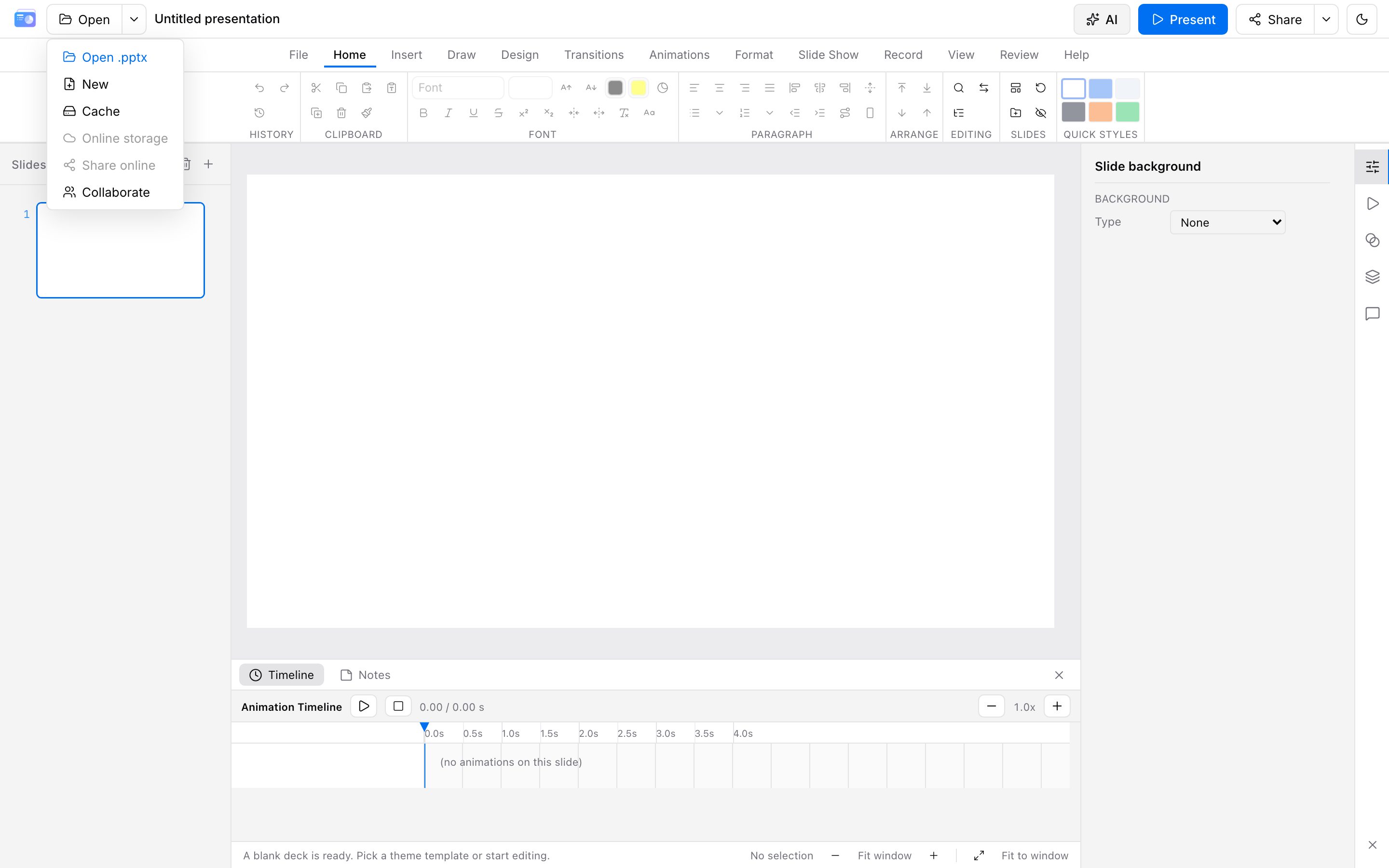
Use the Open menu at the top left: Open .pptx, New, or restore from browser cache. Online storage and share need a signed-in account.
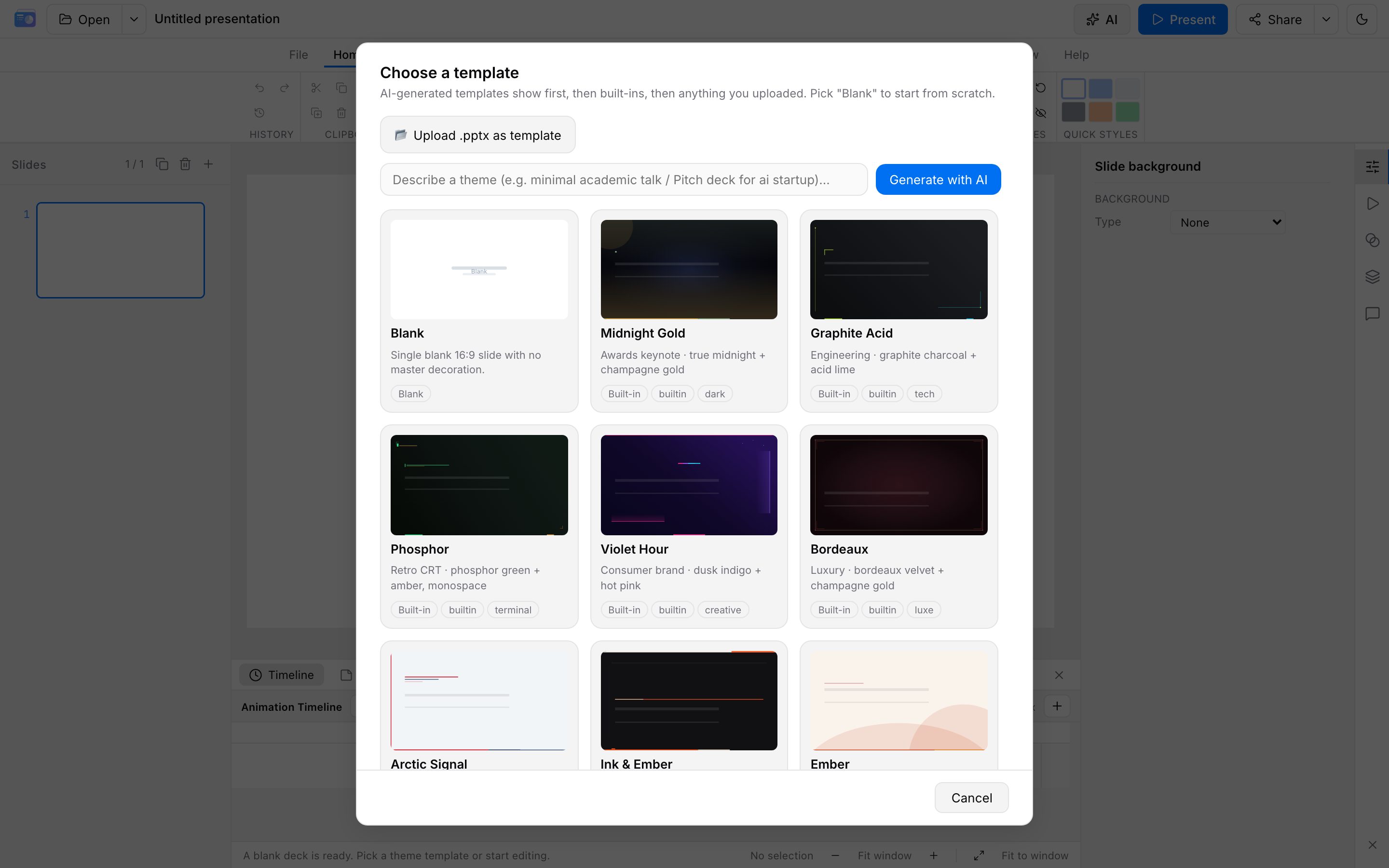
The first visit opens a template picker. Choose a built-in theme, upload a pptx as a template, or describe a theme for AI (API key required).
3. Edit and export
When parse finishes you can browse, edit, and present. Under 10 slides is usually seconds; 100+ slides may take tens of seconds—avoid opening the same file twice.
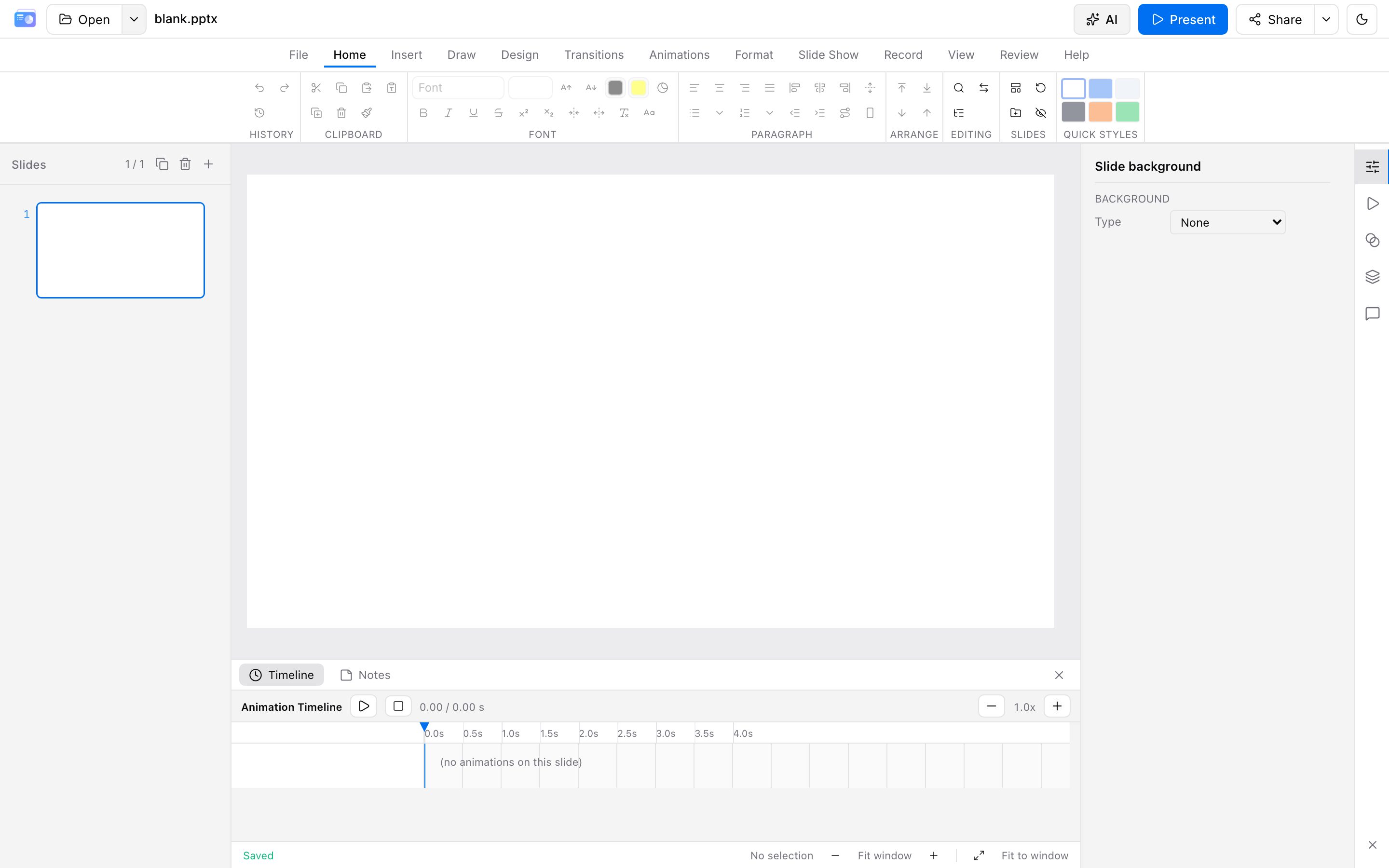
Drafts auto-save locally. The export menu (or Ctrl/Cmd+S to save .pptx) generates the download on our servers; guests are asked to sign in. Signed-in accounts show quota. See Export.
Help → Show Training opens this documentation.
Next
- Learn the editor
- Preview animation & slideshow
- Try the AI assistant
- Read export quotas and cloud storage
- Register / sign in when you need export or cloud sync